- Cloud interface
Manage screen
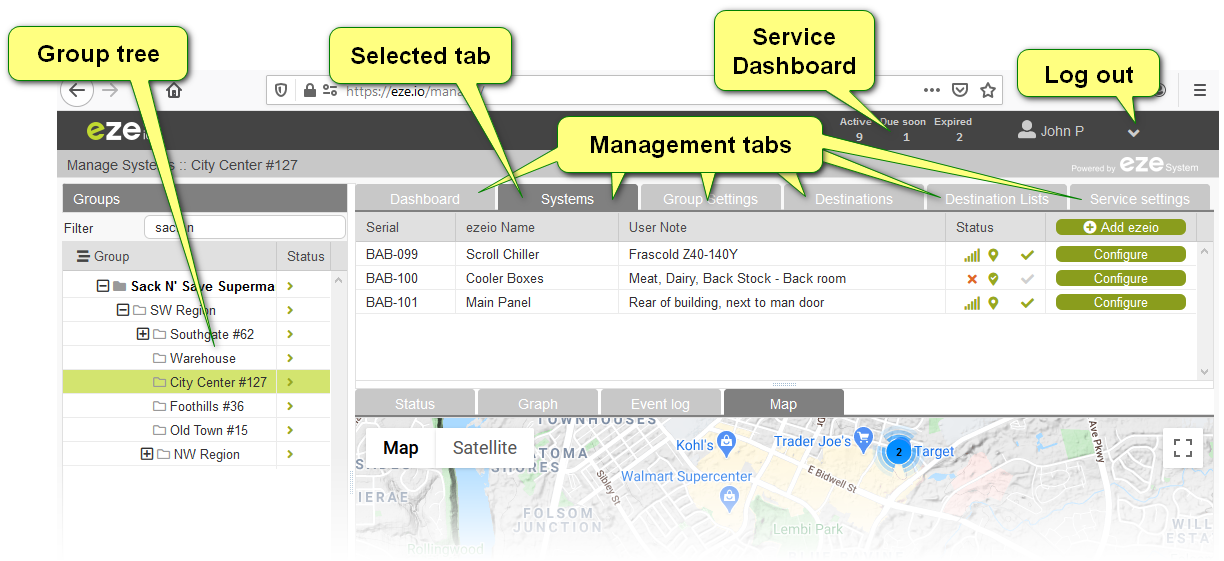
The Manage screen is where you will land when logging into the system for the first time. This is the environment where you can view and make changes in an account or group context ( Changes to individual ezeio controllers are made through the Configure screen). The left sidebar contains your Group tree. Along the top of the main panel you will find a row of tabs. The tabs visible to you are based on the privileges granted to you by the account/group administrator/s. The full array of tabs is shown in the image below.
In this image the Systems tab is selected, displaying a list of controllers and a map with their locations plotted. To navigate within the Manage screen, simply click on a different tab or select another group from the Group tree. To navigate to the Configuration screen, click the green configure button adjacent to the desired controller (shown in the image bellow).
In this section
- Groups (group tree)The Groups sidebar occupies the left side of the Manage screen. It is visible unless full screen is selected for Dashboards. This feature allows the user to locate,...
- SystemsLocated on the “Manage” level of the eze.io user interface, the Systems tab is where the ezeio controllers reside within a group. From this tab you can add or remove...
- Group SettingsThe ezeio system is designed to allow a user (potentially) to have access to multiple groups and/or accounts from a single login. Registering your first ezeio creates...
- Destinations & Destination ListsThe purpose of these two resources is to allow efficient management of message templates and where they are sent. Once created, a Destination List can be selected for...
- Message TemplatesMessage templates controls the content of messages sent as Alarms/Restores or periodic exports.
- Service Settings
- DashboardsLocated on the “Manage” level of the eze.io user interface, Dashboards are designed as a place to curate collections of data, graphically displayed with “Widgets”....
Last updated Sep 27, 2021