- Cloud interface
- Manage screen
- Dashboards
Widgets
Widgets are individual applications that run within eze.io's Dashboards. The “Add Widget” button described in the previous section, will bring up a list of available Widgets. This list will continue to grow, as new Widgets are developed. Below are a few categories of Widgets.
- Historical Data - Line graph, Stacked Bar Graph
- Instantaneous Data - Field value, Field value as gauge, Field value table
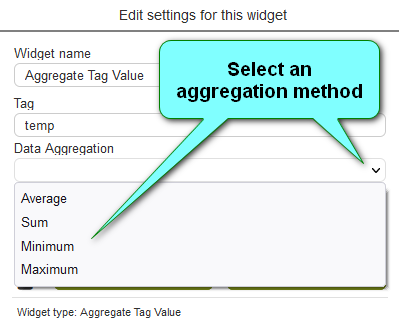
- Aggregated Data - Aggregated Map (shows multiple ezeio locations), Aggregated Tag Value, Circular Gauge (Tag Value & Circular Gauge allow multiple “Field” values to be calculated as sums, average, min or max)
- Control - On/Off Switch, Push Button, Field Value with Editor
- External - External application (can be pointed to a web address to show a website, video, Internet video camera.
- System Info - Clock
- Text - Note widget
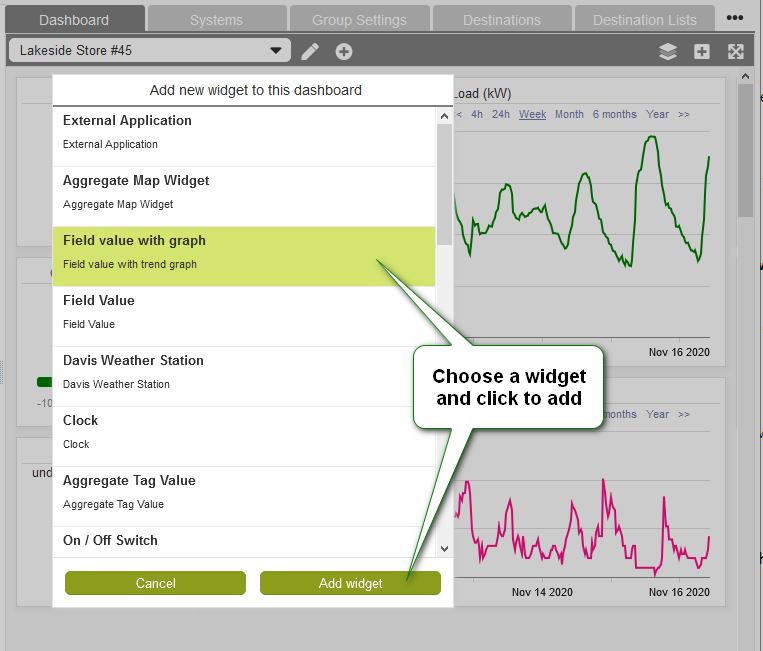
Common widget features and functions#
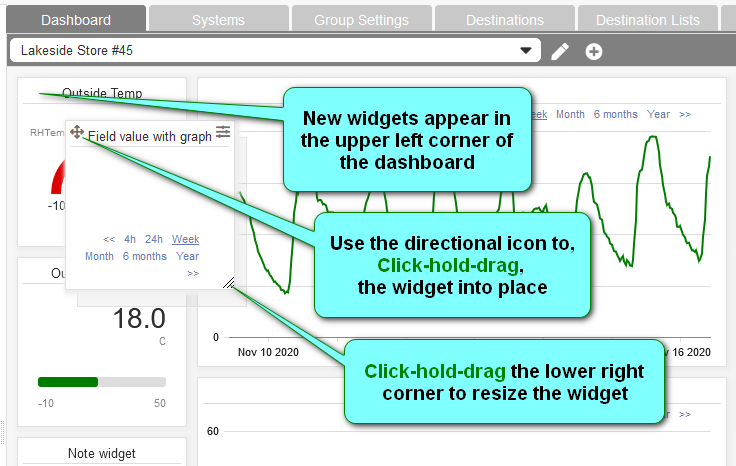

Moving widgets#
The direction icon in the upper left corner of all widgets is used like a handle to drag them into position. While hovering over the icon, simply click-hold and drag. As you drag, widgets will snap into position in the invisible grid.
Resizing widgets#

The height and width of a widget can be resized by dragging the lower right corner. While hovering over the lower right corner, simply click-hold and drag. A shadow indicates the new size of the widget, snapping to the next grid line as you drag.
Arranging / Layering#

Widgets can be placed one above the other partial or totally obscuring the lower layer widgets. The default layer order is based on the order the widgets were created. Use the layer tool on the dashboard header to rearrange the layer order.
Settings#

Click on the icon in the upper left corner of the a widget to access it's settings.
Printing#

An image of single widget can selected for printing or PDF by clicking the printer icon (upper left) in the “Edit settings” dialog box of all widgets
Mapping#
When linking a widget to data source/s two methods are used, selecting via a drop-down-menu and or referencing asset tags.
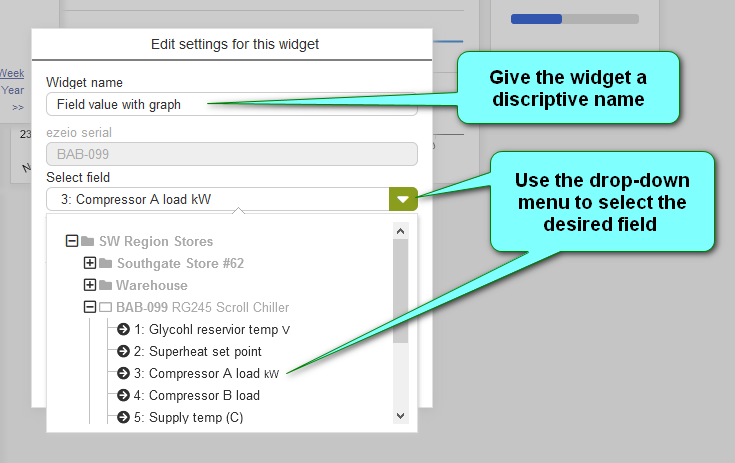
Select via Drop-down-menu
Most widgets allow the data source/s to be selected via a drop-down-menu, as shown in the image above. A tree of Groups and their ezeio controllers can be expanded to reveal individual fields available as data sources for a widget.
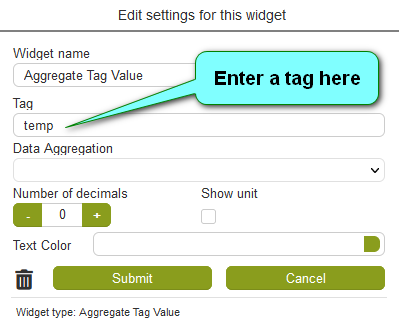
Referencing asset tags
This method is used mainly for aggregate value widgets. These widgets use asset tags (assigned to Fields) as means of incorporating multiple data points into a single value.
In this section
- Aggregate Tag ValueFeatures common to all Widgets and general Dashboard info can be found on the Widgets section of the manual.
- Bar GraphFeatures common to all Widgets and general Dashboard info can be found in the Dashboards section of the manual.
- Circular Gauge WidgetFeatures common to all Widgets and general Dashboard info can be found on the Widgets section of the manual.
- External Application WidgetFeatures common to all Widgets and general Dashboard info can be found on the Widgets section of the manual.
- Field ValueFeatures common to all Widgets and general Dashboard info can be found on the Widgets section of the manual.
- Field Value as GaugeFeatures common to all Widgets and general Dashboard info can be found on the Widgets section of the manual.
- Field Value with EditorFeatures common to all Widgets and general Dashboard info can be found on the Widgets section of the manual.
- Field Value with GraphAlso see Line Chart widget
- Formatted Field Value WidgetFeatures common to all Widgets and general Dashboard info can be found on the Widgets section of the manual.
- Line ChartFeatures common to all Widgets and general Dashboard info can be found on the Widgets section of the manual.
- Note WidgetFeatures common to all Widgets and general Dashboard info can be found on the Widgets section of the manual.
- Push Button WidgetThis widget can be used as an actuator or an indicator. The circular button's color changes from between green and red to indicate the state. User defined text can...
Last updated Sep 24, 2021