- Cloud interface
- Manage screen
- Dashboards
- Widgets
Note Widget
Features common to all Widgets and general Dashboard info can be found on the Widgets section of the manual.
General Dashboard and Widget info#
Features common to all Widgets and general Dashboard info can be found on the Widgets section of the manual.
Description#
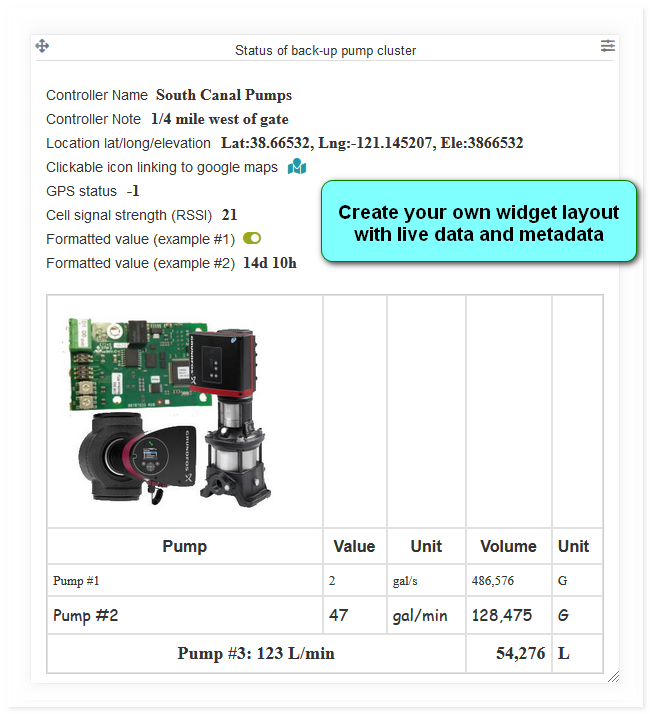
The eze.io note widget allows users to input text and insert tags to show live and meta data. The tools provided are similar to a document writer application. As shown n the example above images and tables can be inserted.
Minimum height - 2 grid units
Features / Options#
- Display user defined text
- Edit: size, font, color, etc.
- Display live and meta data
- Insert images
- Insert Table
- Insert map links
Settings#
Macro $1 and Macro $2#
The editor accepts two macros. Any occurrences of '$1' will be replaces by the text in the Macro $1 box. Same thing applies to $2. If no text is entered for the macro, no replacement happens in the text body. The macro replacement happens before any other processing of the text body.
Document Editor#
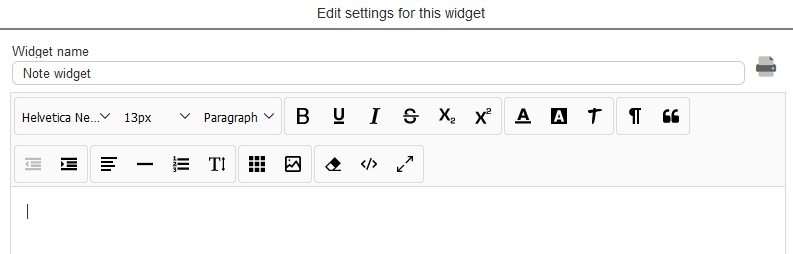
The document editor has all the typical editing tools, including subscript, superscript, line height and code view.
Insert image#
Insert table#
Document editor allows the user to insert a table that stretches (by default) to fil the width of the widget. Click on the table tool and select an initial number of columns and rows (max 10 x 10).
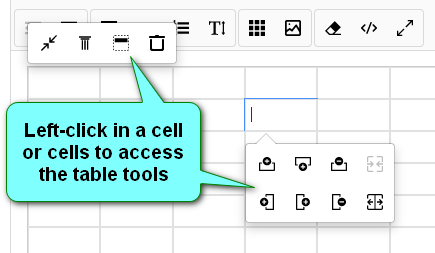
- Minimize table
- Fix Column width
- Add header row
- Delete
- Add or remove rows
- Add or remove columns
- Split or merge cells
Available Tags#
The tags utilized by this widget have a similar naming convention to those used in “Message Templates” and both require the tag to be encapsulated by square brackets “[ ]”. Since Dashboards can access multiple ezeio controllers, the tag must include a serial number.
| Tag | Description | Origin |
|---|---|---|
| [ABC123,EZENAME] | Name of controller | System settings (user defined) |
| [ABC123,EZENOTE] | Note | System settings (user defined) |
| [ABC123,LASTCOM] | Time since last communication | System status |
| [ABC123,FIRMWARE] | Firmware version | System status |
| [ABC123,GPS] | GPS location as lat/long/elev | System info, based on cell proximity or IP if no GPS receiver |
| [ABC123,GPSLINK] | Shows a clickable icon linking to google maps | System info, based on cell proximity or IP if no GPS receiver |
| [ABC123,GPSMAP] | Inserts small map showing current location | GPS receiver if available |
| [ABC123,GPSSIGNAL] | GPS status | GPS receiver if available |
| [ABC123,RSSI] | Cell signal RSSI | Cellular modem |
| [ABC123,F,1] | Field name + Value + Unit | Fields (user defined) |
| [ABC123,FV,1] | Field's value (formatted) | Fields (user defined) |
| [ABC123,FR,1] | Field's value (unformatted) | Fields (user defined) |
| [ABC123,FU,1] | Field's unit | Fields (user defined) |
| [ABC123,FN,1] | Field name | Fields (user defined) |
| [ABC123,AREAID] | Group ID of geographic area including the controller | GPS location |
| [ABC123,AREANAME] | Group name of geographic area including the controller | GPS location |
| [ABC123,AREADESC] | Group description of geographic area including the controller | GPS location |
| [ABC123,PREVAREAID] | Previous group ID of geographic area including the controller | GPS location |
| [ABC123,PREVAREANAME] | Previous group name of geographic area including the controller | GPS location |
| [ABC123,PREVAREADESC] | Previous group description of geographic area including the controller | GPS location |
It's convenient to use the macros in place of the controller identifier. Example:
My controller serial is $1 and its name is [$1,EZENAME]Last updated Aug 26, 2025